Payment Methods
How to Pay Using Online Bill Payment
Step 1: Add a Payee
Open a new tab in your browser and log in to your bank account.
Go to the "Bill Payments" or "Pay Bill" section.
Select “Add Payee” and search for CPA Western School of Business.
- Enter your 7-digit CPA ID Number as the account number.
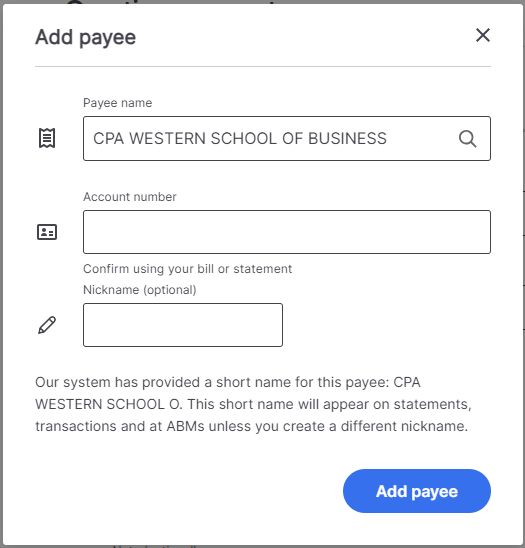 Note: If you have a 6-digit CPA ID, add a zero in front of your CPA ID. If you have an 8-digit CPA ID, only enter the first 7 digits.
Step 2: Make a Payment
- Enter the total amount, including GST, to pay the full outstanding balance on your learner account.
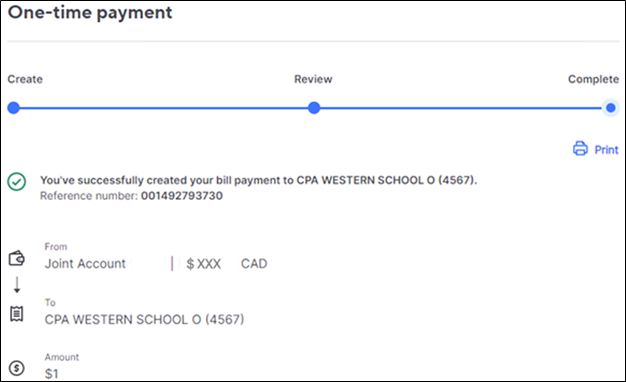
- Complete the payment and wait for a confirmation from your bank.
- Return to the My CPA Portal, find the invoice you wish to pay, and make payment using your CPA ID number and the reference number provided in the confirmation.
Step 3: Submit Your Payment
- Once you have entered your CPA ID Number, click on Submit Order to finalize the transaction.
Additional Payment Options
If your financial institution does not list CPA Western School of Business as a payee, you can choose to pay via e-transfer or credit card (note that credit card payments may be subject to a surcharge).
If you choose to pay by credit card, you can select that option during the payment portion of your transaction on the My CPA Portal.
If there is an outstanding invoice on your account, you can make a payment by following these steps:
- Log in to your My CPA Portal.
- Select “CPA Account” under the “My Profile” tab.
- Find the invoice you wish to pay and click “View” next to this invoice (on the right-hand side).
- When the invoice is open, you will be able to make a payment.
Visa, MasterCard and American Express options are available.
All credit card transactions are subject to a fee. Fees are subject to change.
If you choose to pay by e-transfer, you can select that option during the payment portion of your transaction on the My CPA Portal.
Instructions for Sending an E-Transfer to Pay Fees
- Log In to Your Online Banking or Mobile Banking App outside of the My CPA Portal
- Access your financial institution's online or mobile banking service. If you don’t have online banking set up, you may need to register first.
- Navigate to the E-Transfer Section
- Once logged in, find the option for sending an e-transfer. This is usually located in the menu under “Transfers” or “Payments”.
- Add a New Recipient (First time only)
- You'll need to add CPAWSB as a recipient for your e-transfer.
- For the recipient's name, enter “CPAWSB”
- For the recipient's email address, enter “[email protected]”.
- Enter Payment Details
- Select CPAWSB for the transfer recipient.
- Enter the amount you wish to transfer. This should be the total of the fees you are paying, including GST.
- In the message or memo section, include your CPA number.
- Review and Send
- Double-check all the information to ensure it is correct.
- Click “Send” or “Confirm” to initiate the e-transfer.
Note: CPAWSB is set up for auto-deposit; therefore, no password is required.
- Confirmation
- You will receive a confirmation from your bank that the e-transfer has been sent.
- Keep this confirmation for your records and to complete the next step.
- If you need to resend an Interac e‑Transfer confirmation, please send it to [email protected]
- Go back to the My CPA Portal payment window
- Enter the following information:
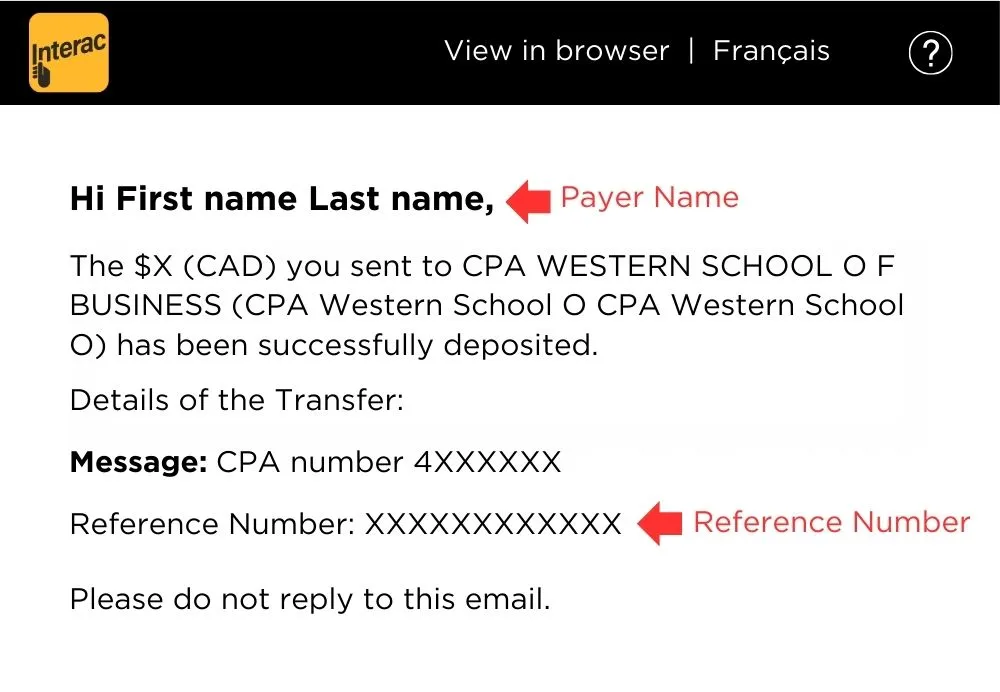
- Payer Name
- Reference Number you received from your bank or credit union for the e-transfer confirmation.
- Enter the following information:
-(2).webp?language=en-US "INTERAC_(1000-x-692-px)-(2)")
Note: If the portal session times out, please start a new transaction. It will take 1 - 2 business days to process the transaction
Frequently Asked Questions
Your CPA ID is a unique number assigned to you by CPAWSB. You can find it by:
- Logging in to your CPAWSB portal and checking your account profile.
- Looking at emails you have received from CPAWSB, such as registration or program-related communications.
When entering your CPA ID:
- If it has 6 digits, add a 0 at the beginning.
- If it has 8 digits, use only the first 7 digits.
- If it has 7 digits, enter it exactly as shown.
Tip: Search your email inbox for “CPAWSB” to quickly locate your number.
It may take up to 3 business days for your payment to be processed. This is due to the manual nature of the process. We appreciate your patience and understanding as we work to ensure your payment is properly applied.
If CPAWSB is not listed, you can pay using an e-transfer or credit card. Instructions for these methods are found under Payment Methods above.
Contact us immediately to correct any errors or to ensure proper payment allocation. See the email list under Troubleshooting related to payment.
Ensure that the payment went through, and if you still don’t receive a confirmation, contact your bank’s customer service for assistance.
Recurring payments may depend on your bank’s capabilities. Check with your financial institution for options.
If you are eligible for a refund, CPAWSB will issue it to your CPAWSB learner account by default. The time to process the refund can take 5-10 business days or longer.
If you e-transferred and do not want the refund credited to your learner account, please contact us directly so we can issue a cheque. Please ensure that your address is correct on your learner account.
No, the non-refundable credit card surcharge will not be returned. Refunds will only cover the transaction amount excluding the surcharge.
If you haven't received your refund within 10 business days, please contact CPAWSB. Ensure to provide your CPA ID and the payment reference details for a quicker resolution.

Financing your education
CPA education, including preparatory courses and modules in the CPA Professional Education Program, is designed for post-secondary graduates and working professionals studying on a part-time basis. Although the CPAWSB delivers CPA education, it is not a post-secondary institution and does not qualify for government student loans or grants. Alternate financing options include grants, loans, scholarships and bursaries.