Employer Portal Roles
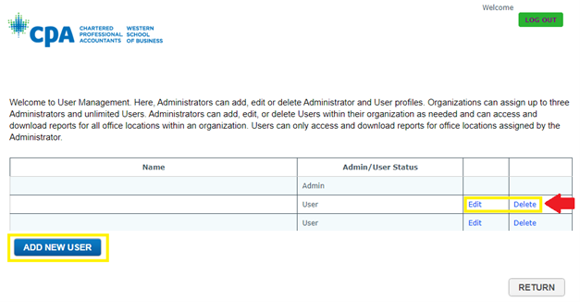
Each organization may have up to three administrators. Administrators can:
- Access reporting for all locations associated with the organization
- Add new users
- Edit user access
- Remove user access
To manage users:
- Select User Management in the side menu
- Select Add New User
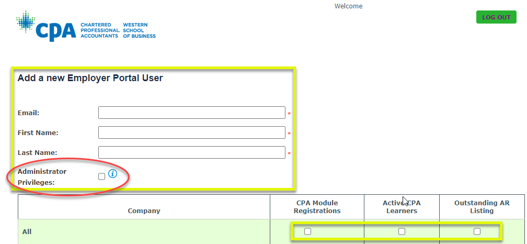
When creating a new administrator account, ensure Administrator Privileges is selected. For a user profile, this can be left unchecked.
- For a new administrator profile, select the checkbox at the top of the column for each report type to grant access to all companies and locations within the organization.
- For a new user profile, select the appropriate report checkboxes beside the specific company or location to limit access to only those locations.
User accounts are managed by an organization's administrator. Users can:
- Run reports
- View information for assigned locations
Users cannot manage other portal accounts.
Reports Available in the Employer Portal
Three reports are available:
- CPA Module Registrations
- Active CPA Learners
- Outstanding AR Listing
Reports can be viewed online or exported using the Save option.
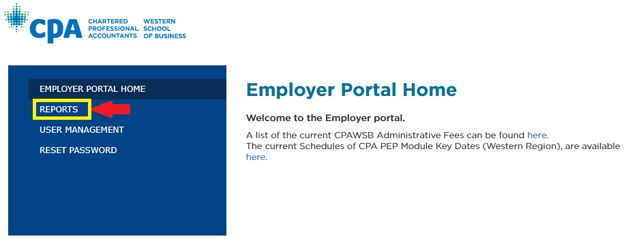
Access Reports:
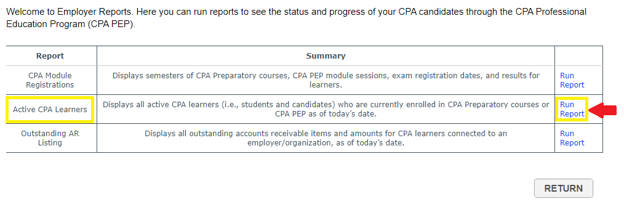
 Run a Report:
This report displays:
- Module registrations
- Examination registrations
- Module results
- Examination results
for CPA PEP candidates and CPA preparatory course students.
Run the Report as shown in the screenshot above, then follow the screenshot below:
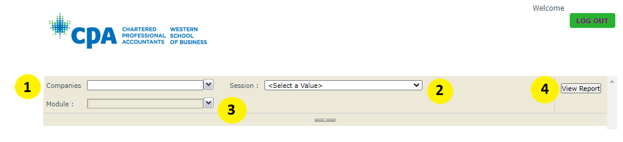
- Select the company or location.
- Select the academic session.
- Select the module.
- Select View Report.
Future sessions may appear in the report. Results will not be available until marks have been released.
Save the report to your preferred format by clicking on the Save icon.

This report displays all active CPA learners associated with your organization.
The report does not include learners who have:
- Withdrawn
- Become members
- Become inactive
Run the Report
- Select the company or location.
- Select the province(s).
- Select View Report.
This report displays outstanding accounts receivable balances for CPA learners associated with your organization.
Employer information is based on data entered by the learner in My CPA Portal. Learners are responsible for keeping their employment information current. It is recommended that the employer compare the individuals listed on this report to their own internal records.
Run the Report
- Select the company or location.
- Select Run Report next to the Outstanding AR Listing report.
Run the Outstanding AR Listing report
- Choose the company/location from the drop-down menu.
- Click “View Report”
Frequently Asked Questions
Candidates are responsible for updating their employer information through the MyCPA portal. Instructions on how to change employer information can be found on our website.
If you cannot find a candidate’s results, please confirm with the candidate that they have provided consent for CPAWSB to disclose their personal information to the employer listed in their My CPA Portal profile. For candidates to update employment information and/or consent, please refer to the instructions on our website.
Any CPAWSB Employer Portal questions should be sent to [email protected].